
Guidelines - PCB design
This page describes how to contribute by designing a new PCB.
Project creation
Create a project using KiCad version >= 9.0.
Open KiCad, then do ‘File’ > ‘New Project From Template…’ or press Ctrl+T.
A window ‘Project Template Selector’ pops up. Select the tab ‘User Templates’ and browse to select the folder kicad/templates in OpenProject repo. The OpenSpare logo should show up above the template name ‘OpenSpare PCB’ as in the following picture:
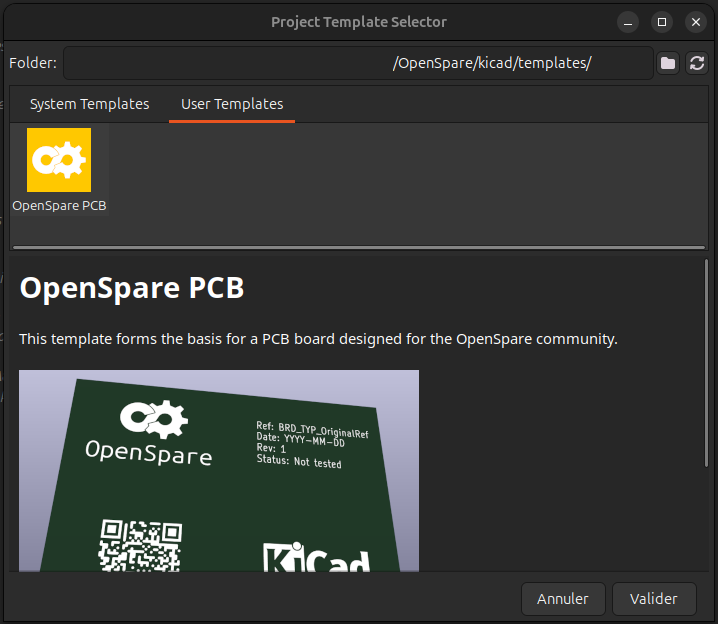
Select it and validate.
You can now save your own project.
Where to save my project ?
OpenSpare’s ‘parts’ folder is aimed to store your design project and all fabrication outputs.
Name your project this way “XXX_YYY_Reference” where :
- XXX is the appliance’s brand code name (example: SMG for samsung)
- YYY is the type of the appliance (example: OVN for oven)
- Reference is the original reference of the part (not the product/appliance)
Save your project in the following folder: OpenSpare/parts/”brand of the appliance”/”type of appliance” and check the box “Create a new folder for my project” before saving. This way, design files will be stored in OpenSpare/parts/”brand of the appliance”/”type of appliance”/”XXX_YYY_Reference”.
The PCB project
This template is made of:
- 1 schematics file XXX_YYY_Reference.kicad_sch
- 1 pcb design file XXX_YYY_Reference.kicad_pcb
- 1 project file XXX_YYY_Reference.kicad.pro
- 1 preference file XXX_YYY_Reference.kicad_prl (automatically created by KiCad - not tracked in the repo)
Those are standards KiCad files. Please refere to KiCad’s documentation for further descriptions.
Schametics and PCB files are made of drawing sheet template you can find in OpenSpare/kicad/templates/OpenSpare_A3_drawing_sheet.kicad_wks.
- Schematics:

- PCB:
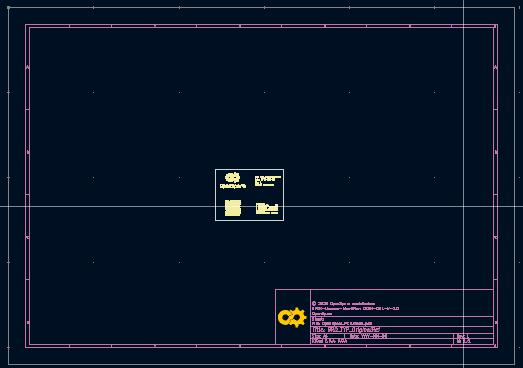
OpenSpare libraries
OpenSpare libraries (symbols and footprints) are available in OpenSpare repo:
- Symbol: OpenSpare/kicad/components/OpenSpare_symbols.kicad_sym
- Footprints: OpenSpare/kicad/components/OpenSpare_footprints.pretty
See KiCad’s documentation to manage them.